Sign user IDs
The public key is in every page, so anyone can copy it. Without signatures, anyone with the key can send events that claim to be any user. A project can require that your own server signs each user ID. Only your server has the secret key, so only your server can make a valid signature.
How the signature works
Section titled “How the signature works”The signature is the HMAC-SHA256 of the user ID, as UTF-8 text. The key is the project’s full secret key, sk_…, as text. Write the result in hex: 64 hex digits, in upper or lower case.
Ottertrail makes the same signature and compares the two.
Sign the ID on your server
Section titled “Sign the ID on your server”- Read the secret key from an environment variable, such as
OTTERTRAIL_SECRET_KEY. Never put it in a page or in client code. The owner and admins find the key in the project’s Settings, on the Your server tab, behind Show. - When your server renders a page for a signed-in user, sign that user’s ID.
- Put the ID and the signature on the script tag.
Node.js:
import { createHmac } from "node:crypto";
const signature = createHmac("sha256", process.env.OTTERTRAIL_SECRET_KEY)  .update(userId)  .digest("hex");
Python:
import hashlibimport hmacimport os
signature = hmac.new(    os.environ["OTTERTRAIL_SECRET_KEY"].encode(),    user_id.encode(),    hashlib.sha256,).hexdigest()
Go:
mac := hmac.New(sha256.New, []byte(os.Getenv("OTTERTRAIL_SECRET_KEY")))mac.Write([]byte(userID))signature := hex.EncodeToString(mac.Sum(nil))PHP:
$signature = hash_hmac('sha256', $userId, getenv('OTTERTRAIL_SECRET_KEY'));Ruby:
signature = OpenSSL::HMAC.hexdigest("SHA256", ENV.fetch("OTTERTRAIL_SECRET_KEY"), user_id)Give the signature to the tracker
Section titled “Give the signature to the tracker”On the script tag:
<script defer src="https://analytics.example.com/t.js" data-key="pk_…" data-host="https://analytics.example.com" data-user-id="42" data-user-signature="5d4c…"></script>In a single-page app, get the signature from your server when the user signs in. Then give it as the second argument of identify():
window.ottertrail?.identify("42", signature);Require signatures
Section titled “Require signatures”Only the owner and admins can change project settings.
- Open the project’s Settings, and choose the Your server tab.
- Under Signed user IDs, turn on Only accept user IDs signed by your server.
- Select Save changes.
The switch is part of the tab’s form, so it takes effect only when you save. Until then, the form shows “Unsaved changes” and Discard. See The save rule. The new rule applies from the next event.
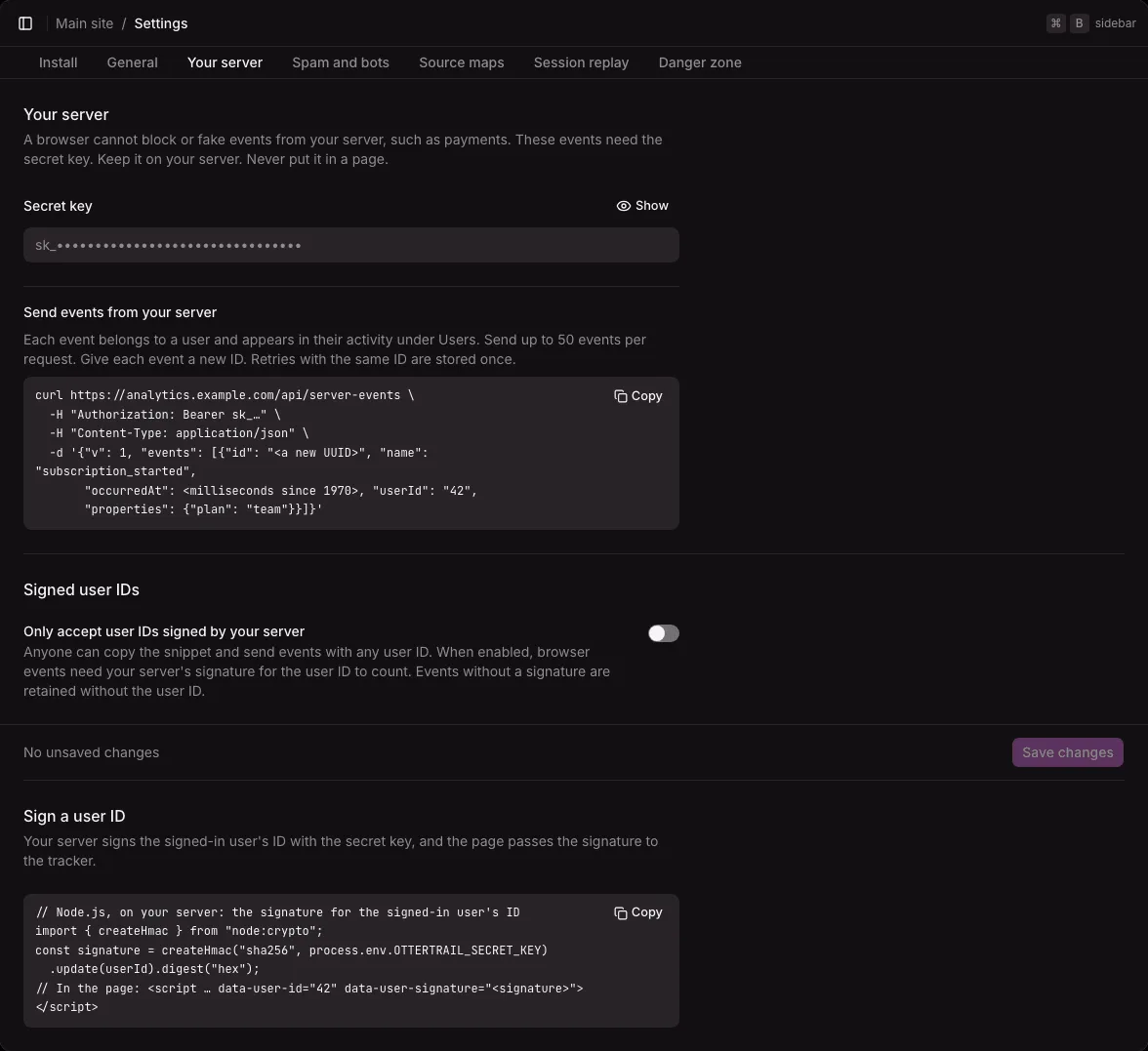
To stop requiring signatures, turn the switch off and save again.
When the setting is on:
- An event with a valid signature keeps its user ID.
- An event without a valid signature is stored without its user ID, as an anonymous event. The answer counts these events in
unverifiedUsers. - A signature that is not 64 hex digits makes the API refuse the whole batch (400). The tracker leaves such a signature out and writes a warning in the console.
When the setting is off, Ottertrail accepts user IDs as they come.
Limits of a signature
Section titled “Limits of a signature”A page shows the signature of its own user. Whoever sees that page can send events as that user, that is, as themselves. They cannot sign any other ID.
If you replace the project’s secret key, signatures made with the old key stop counting. Make new signatures with the new key.