Resolving errors
Open Errors in the project’s menu. The page lists the error groups of one environment and a period, with the list on the left and the selected group on the right. It works like the other list and detail screens. See Lists and details.
The list
Section titled “The list”The filter bar at the top holds the period, the environment (once the project has more than one), and three choices:
| Choice | Shows |
|---|---|
| Unresolved | The groups that need work, regressed groups included. This is the default. |
| Resolved | The groups someone marked resolved, which have not happened again since. |
| All | Every group seen in the period. |
Each row shows:
- The type and the message. Hover over a cut message to see all of it.
- A Regressed or Resolved badge, when the group has that status.
- When the group was last seen (hover for the exact time), and under it, when it was first seen.
- Occurrences, users, and visitors in the period.
The list is in order of last seen, latest first, and cannot be sorted by another column. It reads the 1,000 groups seen most recently. When the period has more, a note says so: choose a shorter period to see older groups.
The summary
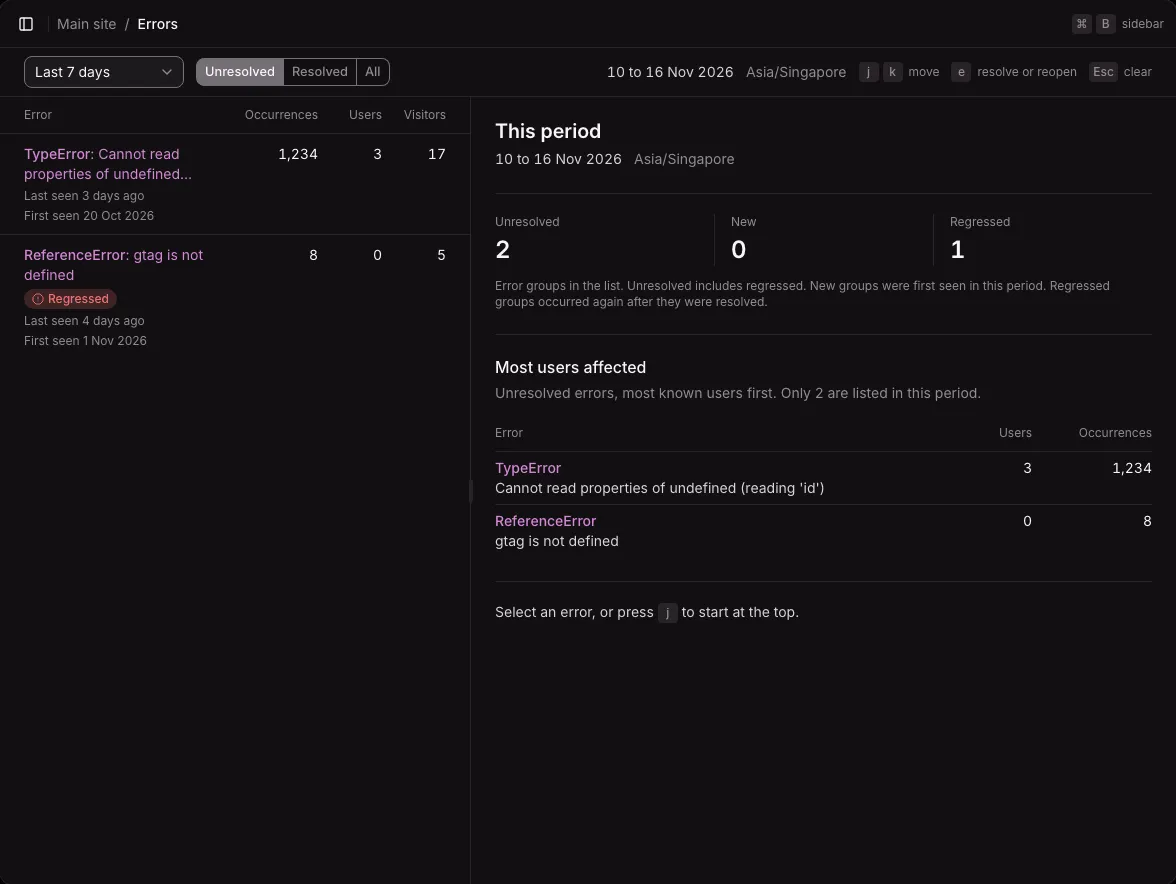
Section titled “The summary”When you open the page, nothing is selected, and the right pane sums up the list:
- How many groups are unresolved, new in the period, and regressed. Under All, how many are resolved too. Under Resolved, how many are resolved and new.
- Most users affected: the five groups that affect the most known users.
When the list stops at 1,000 groups, each figure reads as at least that many (such as “2+”).
When the project has no errors yet, the page explains what the tracker reports by itself, how to report caught errors with captureError(), and how data-errors="off" turns automatic reports off. See Report errors from the browser.
Select a group
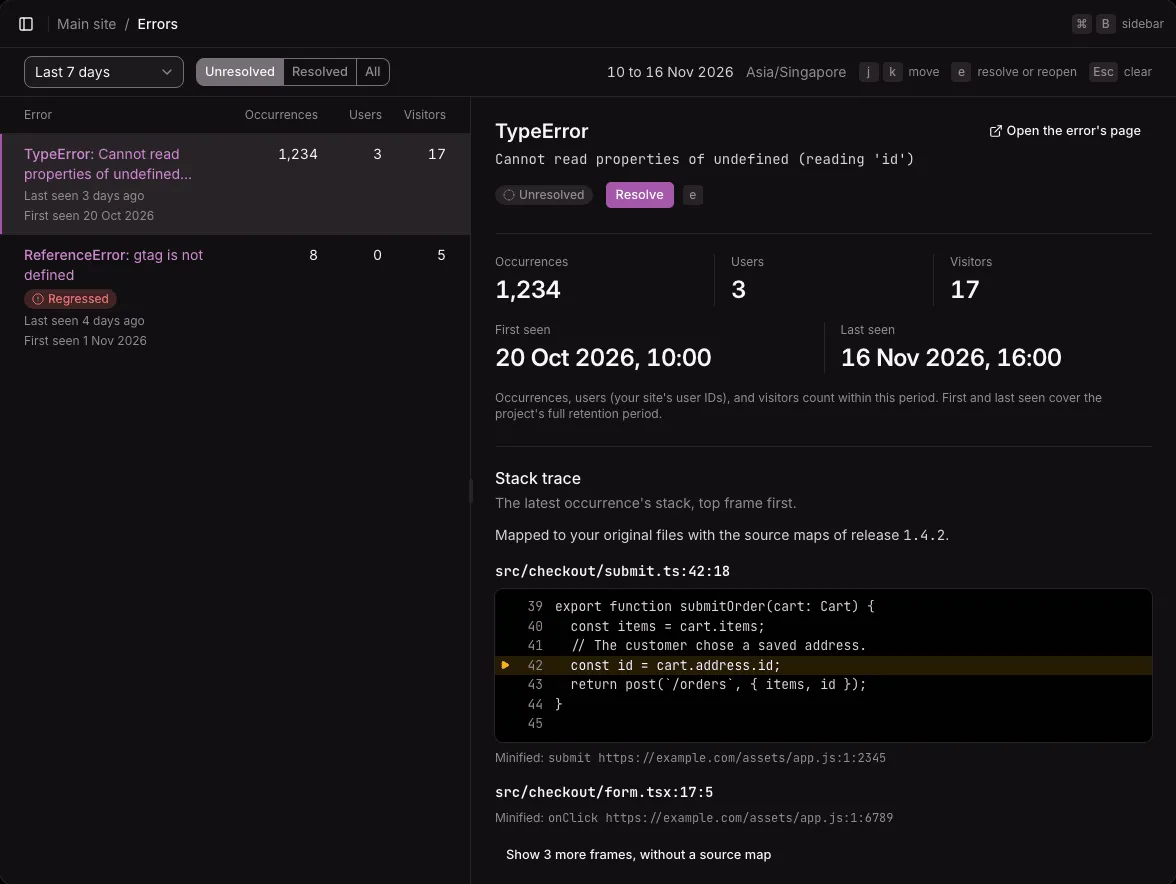
Section titled “Select a group”Click a row to show the group beside the list. The selection goes in the address (?error=…), so you can share it. Open the error’s page opens the group’s own page.
| Key | Does |
|---|---|
j |
Selects the next group. With nothing selected, the first. |
k |
Selects the previous group. |
e |
Resolves or reopens the selected group, if you may change it. |
Esc |
Clears the selection and shows the summary again. |
When e takes the selected group out of the list (for example, a resolved group under Unresolved), j and k carry on from where it was.
Statuses
Section titled “Statuses”| Status | Means |
|---|---|
| Unresolved | Nobody has marked the group resolved. Every new group starts here. |
| Resolved | Someone marked the group resolved, and it has not happened since. |
| Regressed | The group happened again after someone resolved it. It counts as unresolved, so it is back under Unresolved, with the badge. |
The status belongs to the project, not to one environment. A group resolved and then seen again in staging shows as regressed in production’s list too.
Resolve and reopen
Section titled “Resolve and reopen”Under the group’s message, Resolve marks the group resolved. A resolved group shows Reopen in its place, which marks it unresolved again. Or press e while the group is selected.
- A resolved group says who resolved it, and when.
- A regressed group says that it was seen again after it was resolved, by whom, and when.
- The owner, admins, and members who manage errors see these buttons. Other members see the status only. See Members and roles.
Resolving does not delete anything. The group’s occurrences stay, and a new occurrence regresses the group.
To be told when a resolved group comes back, add an alert rule (see the Alert rules card).
The group’s page
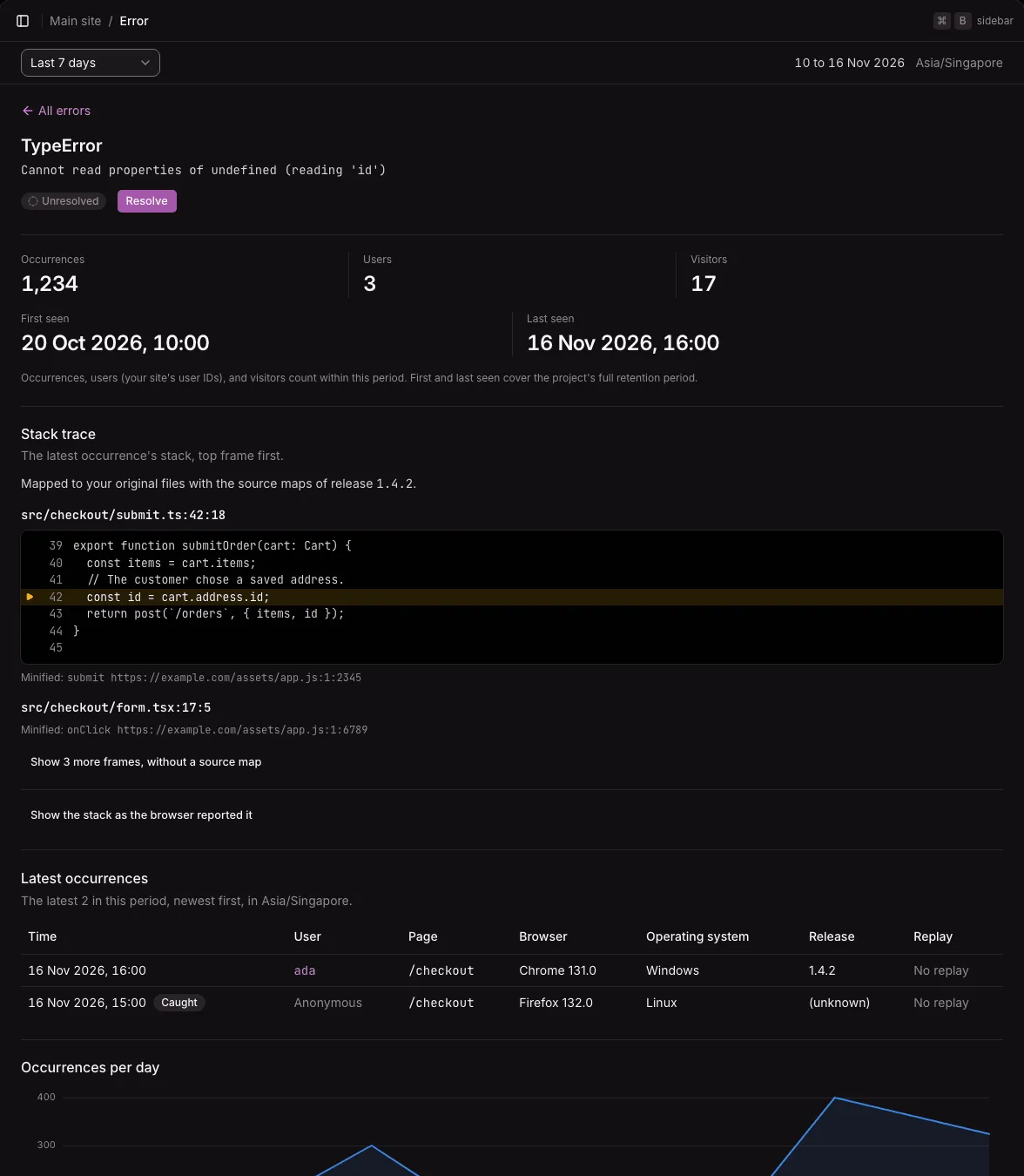
Section titled “The group’s page”The group’s own page (/projects/<id>/errors/<fingerprint>) shows the same as the pane beside the list. It is the page that links open, and the page that a row opens on a phone. All errors goes back to the list.
From top to bottom:
The counts
Section titled “The counts”- Occurrences in the period.
- Users: the distinct user IDs your site sent (see Name signed-in users).
- Visitors: the distinct anonymous visitors. A visitor’s ID changes every day, so a visitor who hits the error on three days counts three times.
- First seen and Last seen, over all the time the project keeps its events, in this environment. First seen tells a new error from an old one.
The stack trace
Section titled “The stack trace”The stack of the latest occurrence, top frame first. A line above it says how Ottertrail read it:
- Mapped: “Mapped to your original files with the source maps of release …”. Each mapped frame shows its original file, line, and column, the lines of source around it when the map holds them (the line of the error is marked), and the minified location in small text.
- Not mapped, with the reason: the occurrence has no release, no frame is in a file that a map could be for, the release has no maps for the stack’s files, the maps do not cover the frames, source maps are off on this instance, or the maps could not be read just now. When maps are missing, the line names the files to upload and links to the project’s Source maps settings.
Three or more frames in a row without a source map, often a library’s, fold behind Show N more frames, without a source map. Show the stack as the browser reported it opens the raw stack. When the browser gave no stack, the card says so.
See Upload source maps.
Latest occurrences
Section titled “Latest occurrences”The latest 20 occurrences in the period, newest first, with:
- The time, and Caught for an error reported with
captureError(). - The user, as a link to the user’s page, or Anonymous.
- The page, browser, operating system, and release.
- Replay: Play replay when a replay is ready, Arriving… while it is on its way (the page sends it about 10 seconds after the error), or No replay. See Replays of errors.
Occurrences per day
Section titled “Occurrences per day”A line chart of the period, with Show the numbers for a table of the same counts.
Where it happens
Section titled “Where it happens”The top 5 pages, browsers, operating systems, and releases of the group’s occurrences. For a server’s exception, routes and services take the place of pages, browsers, and operating systems. See Server errors.
Alert rules
Section titled “Alert rules”The Alert rules card lists the rules that watch this group, each with its state and what it watches: rules for regressed errors, and spike rules for this group or for all errors, in its environment or in all. “No rule watches it yet.” when there are none. A rule’s link opens it on the Alerts page.
Add an alert rule opens the Alerts page with the form of a spike rule filled in for this group and its environment. A rule for new errors never shows here, because it watches groups that do not exist yet. See Alert rules.
A group with no occurrences in the period
Section titled “A group with no occurrences in the period”The page says “No occurrence in this period”, with links to all errors and to the last 12 months.
On a phone
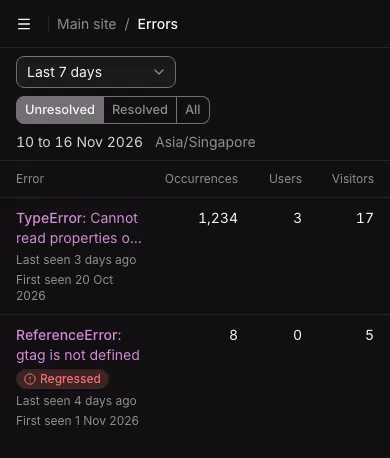
Section titled “On a phone”Under 64rem wide, the list fills the screen and a row opens the group’s own page. See On a phone.
Not available yet
Section titled “Not available yet”- Counts on the three choices. Unresolved cannot tell “no errors” from “all resolved”.
- Ignoring a group, merging two groups, searching messages, and “resolved in the next release”.