Custom events
Pageviews say which pages people open. Custom events say what they do there: sign up, start a trial, invite a teammate. Your site sends them, with details of its own (properties), and the Product analytics page counts and breaks them down.
Send an event with track()
Section titled “Send an event with track()”Once the tracker has loaded, call window.ottertrail.track() with a name and, optionally, properties:
window.ottertrail?.track("signup", { plan: "free" });Calls made before the script has loaded are lost, so write ?.: a call then does nothing when the tracker is missing, instead of throwing an error.
The event goes with the page’s other events, within a second. It carries the page, the environment and release of the script tag, and the signed-in user’s ID when there is one (see Name signed-in users).
To send events that a browser should not send, such as payments, see Server-side events.
- 1 to 200 characters. The tracker removes control characters and cuts longer names.
- Choose names that stay the same, such as
signuporinvite_sent. Reports group events by their exact name.
Properties
Section titled “Properties”Properties are a flat object of details:
- At most 30 keys, each up to 100 characters.
- Values are strings (up to 500 characters), numbers,
true,false, ornull. Nested objects and arrays are not allowed. - At most 8 KB in total.
The tracker cleans properties before it sends them: it keeps flat values only, at most 30 keys, and cuts strings to 500 characters. A property that is different on every event, such as an order ID, has as many values as there are events, and its table shows only the 10 most frequent.
Reserved names
Section titled “Reserved names”pageview, engagement, error, and vitals are the tracker’s own events. track() refuses them and writes a warning in the browser’s console. So a page cannot add to its own pageviews.
To report an error, use captureError(). See Report errors from the browser.
The Events tab
Section titled “The Events tab”Open Product analytics in a project’s menu. It opens on the Events tab, beside Funnel and Retention. The page is a report, with the period and, once there is a choice, the environment in its filter bar. See Reports.
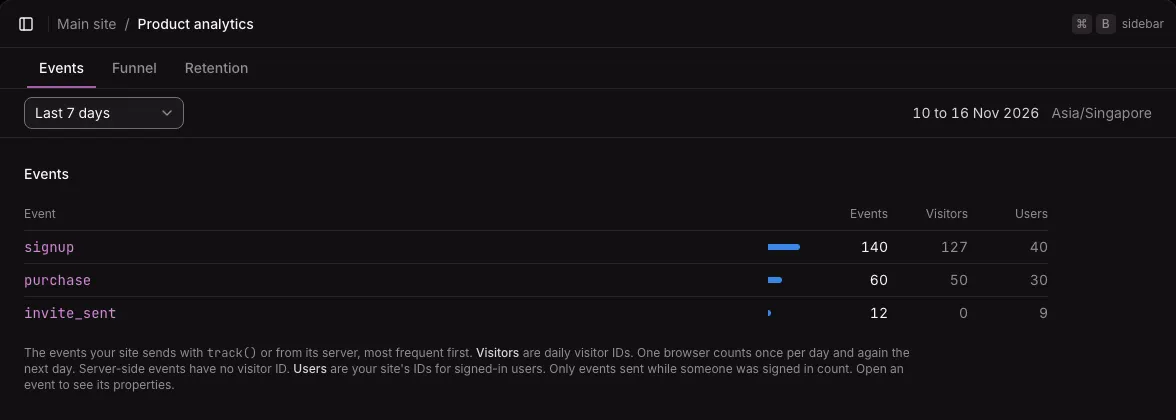
The table lists the product events of the period, most frequent first (the top 100):
| Column | What it counts |
|---|---|
| Events | How many times the event happened |
| Visitors | Distinct daily visitor IDs that sent it. One browser counts once a day, and again the next day. Server-side events have no visitor. |
| Users | Distinct signed-in users that sent it. Only events sent while someone was signed in count. |
In the example, invite_sent has 0 visitors and 9 users: it comes from the site’s server.
Before your site sends any event, the tab shows how to send one, from the browser or from your server, with an example to copy.
One event and its properties
Section titled “One event and its properties”Select an event’s name to open its page. It shows the event’s events, visitors, and users, a chart of events per day (“Show the numbers” opens it as a table), and its properties.
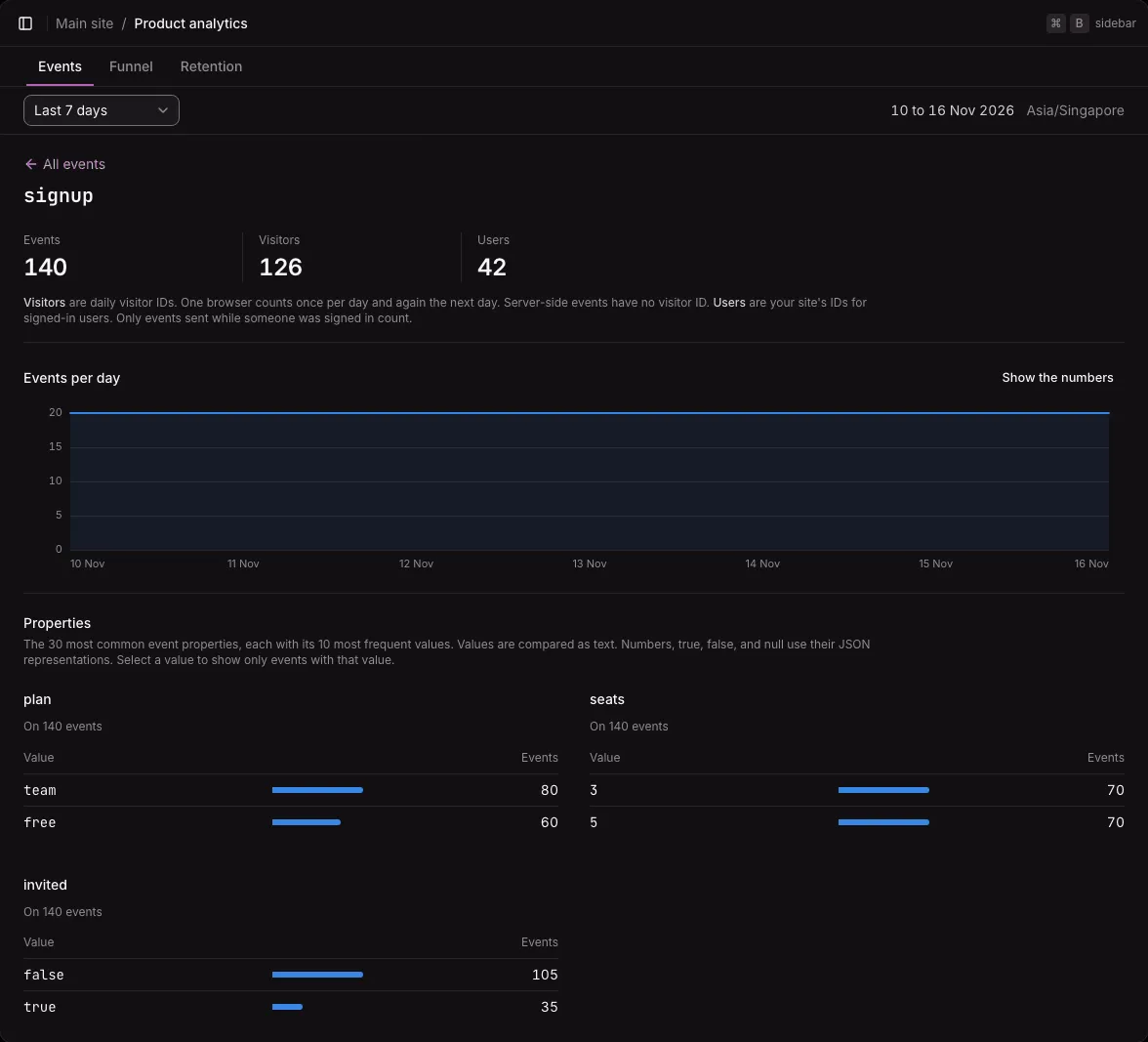
The Properties section lists the 30 most common properties of the event, each with its 10 most frequent values, two tables side by side. “On 140 events” under a property’s name says how many of the events carry it.
Filter by a property
Section titled “Filter by a property”Select a value to show only the events with that value. Every figure, the chart, and every property table then count those events. Select a value in another table to add a second filter: several filters must all hold, at most five.
- Values are compared as text. A string is compared as it is. A number,
true,false, andnullare compared as JSON writes them, such as3ortrue. - An event without the property never matches, even a filter for an empty value.
- Active filters show in the filter bar, each with a button to remove it.
- Filters go in the page’s address, such as
p.plan=team, so you can link to the filtered view and reload it.
When no event matches, the page says so.
On the Web analytics page
Section titled “On the Web analytics page”The Custom events table on the Web analytics page lists each event with its visitors and how often it happened, for the page’s period and filters. A custom event in a visit also means the visit is not a bounce. See Web analytics reports.
To count the visitors who sent an event, as a share of all visitors, add a goal.
Not available yet
Section titled “Not available yet”- Custom events and their properties as filters on the Web analytics page.
- Comparisons other than “equals”.
- Calls to
track()before the tracker has loaded. They are lost.