Goals
A goal is a page or an event that counts as a success, such as viewing /pricing or signing up. The Web analytics page counts, for each goal, the visitors who reached it and their share of all visitors.
Add a goal
Section titled “Add a goal”The Goals table is at the bottom of the Web analytics page. To add and delete goals, a member needs to manage the product analytics area. To see them, view is enough.
- Select Add goal.
- Give the goal a name, such as “Signed up”. Each goal of a project needs its own name.
- Under Reached when, choose the type:
- Event: a custom event of this name. The page’s custom events are suggested as you type. Add a property filter narrows it to the events where one property has one value, such as
plan=team. - Page: a pageview of exactly this path, without its query or fragment.
- Event: a custom event of this name. The page’s custom events are suggested as you type. Add a property filter narrows it to the events where one property has one value, such as
- Select Add goal in the dialog.
The fields are checked as a funnel step’s are (see Funnels). If the name is taken, or the project already has 20 goals, the dialog says so. At 20 goals, Add goal is disabled, with the reason beside it.
An event goal counts events from browsers only. An event from your server has no visitor, so it never reaches a goal. To follow signed-in users through server-side events, use a funnel counted by users.
A goal stores no data of its own. It counts from the events already stored, so a goal added today also counts past visits.
Where goals show
Section titled “Where goals show”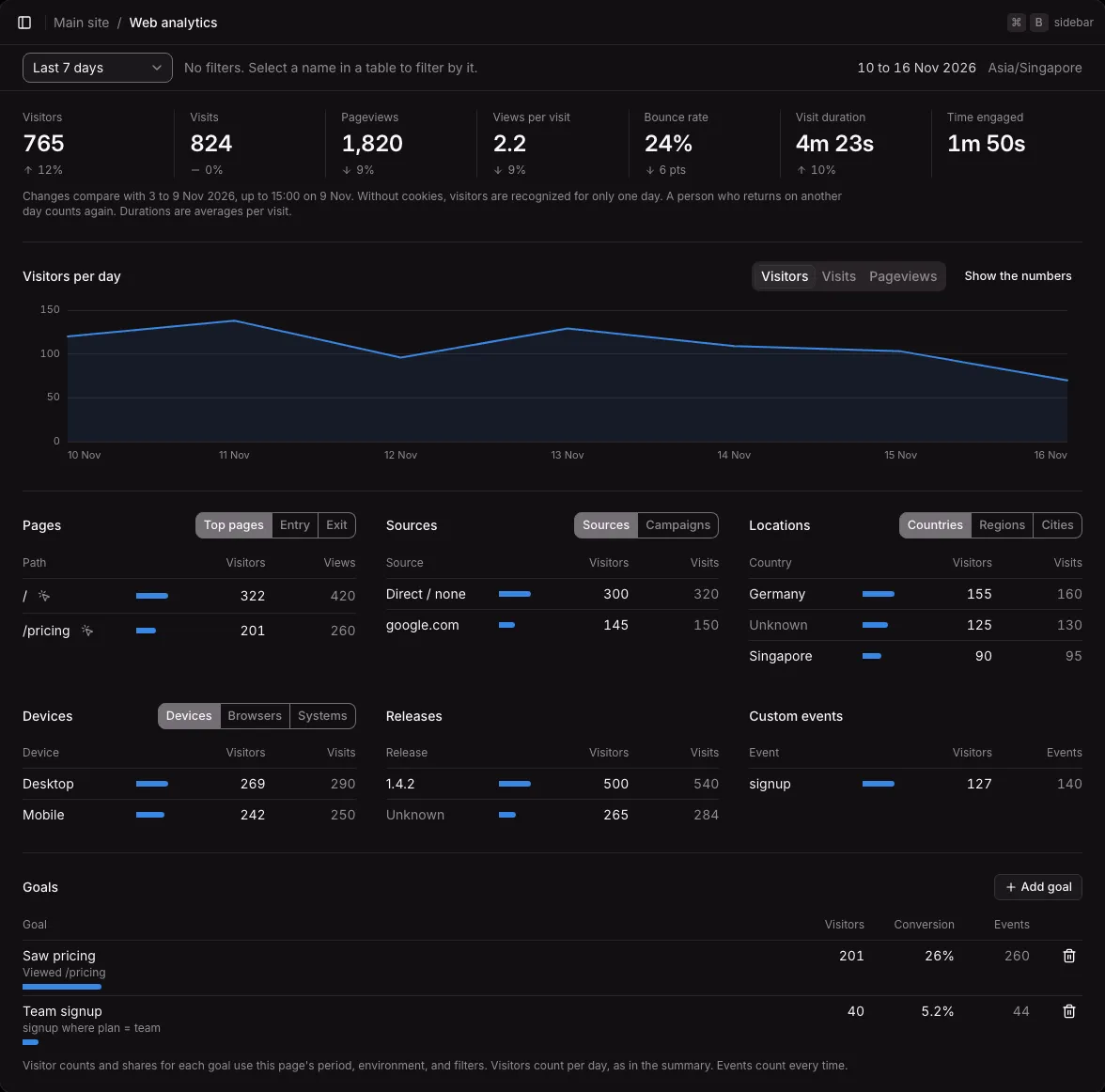
The Goals table lists the goals in the order they were added. For each goal:
| Column | What it shows |
|---|---|
| Goal | The name, and what reaches it in plain words, such as “Viewed /pricing” or “signup where plan = team” |
| Visitors | The visitors who reached the goal. As in the figures at the top, a visitor counts once a day. |
| Conversion | Those visitors as a share of the page’s visitors, with a bar from 0 to 100%. Below 10% it has one decimal. |
| Events | How many times the goal was reached |
The numbers follow the page’s period, environment, and filters. A filtered page counts the goals among its own visits only: filter by a source, and you see how many visitors from that source reached each goal. See Web analytics reports.
The project’s overview shows the goals too, compared with the period before.
The main goal
Section titled “The main goal”One goal can be the project’s main goal. The overview’s business figures start with it. The owner or an admin chooses it in the project’s Settings, on the General tab, under Main goal. Without one, the overview shows new signed-in users instead. Deleting the goal clears the setting.
Delete a goal
Section titled “Delete a goal”Select the delete button on the goal’s row, then confirm. Only the goal’s definition goes. Its counts come from your events each time, and the events stay.
Not available yet
Section titled “Not available yet”- Goals counted by signed-in user instead of by visitor.
- A goal’s trend over time on the Web analytics page.