Members and roles
Every person who signs in to the dashboard has one role: owner, admin, or member. The owner and admins can see and change everything in the projects. A member sees only the areas and projects that they were given.
The instance checks every request on the server, with the person’s role and access as they are at that moment. A change applies on the person’s next click. Hiding a button in the dashboard only saves them a refusal.
| Role | What it can do |
|---|---|
| Owner | Everything. There is exactly one owner. Only the owner changes the instance settings (the name, the timezone, and the location data updates) and hands over ownership. The owner can do everything an admin can do, to admins too. |
| Admin | Every project and area. Creating, changing, and deleting projects. Project keys and project settings. Notification channels, the Storage tab of the instance settings, and the Members page. An admin cannot change the instance settings or anything that touches the owner. |
| Member | Only the areas and projects that the owner or an admin gave them. |
On the Members page, these rules apply:
- Only the owner invites, promotes, demotes, removes, or makes reset links for admins. An admin acts on members only, and cannot make anyone an admin.
- Nobody changes the owner’s access, removes the owner, or makes the owner’s reset link there.
- Nobody changes their own access or removes themselves.
The owner who wants to give the instance to someone else hands over ownership. See Hand over ownership.
The Members page
Section titled “The Members page”The owner and admins open Members from the workspace menu (/settings/members). Members do not see it.
The page is a list with a detail pane, as the other lists of the dashboard are (see Lists and details). The list on the left has two parts:
- Members: each person’s name and email address, their role or a summary of their access (such as “Member: Viewer, all projects”), and their last sign-in. “You” marks your own row.
- Pending invitations: each invitation’s email address, its access, and when it expires. See Invitations.
Invite, at the top of the list, opens the invitation dialog.
With nobody chosen, the right pane shows “Everyone with access”: how many owners, admins, members, and pending invitations there are, and what the page is for.
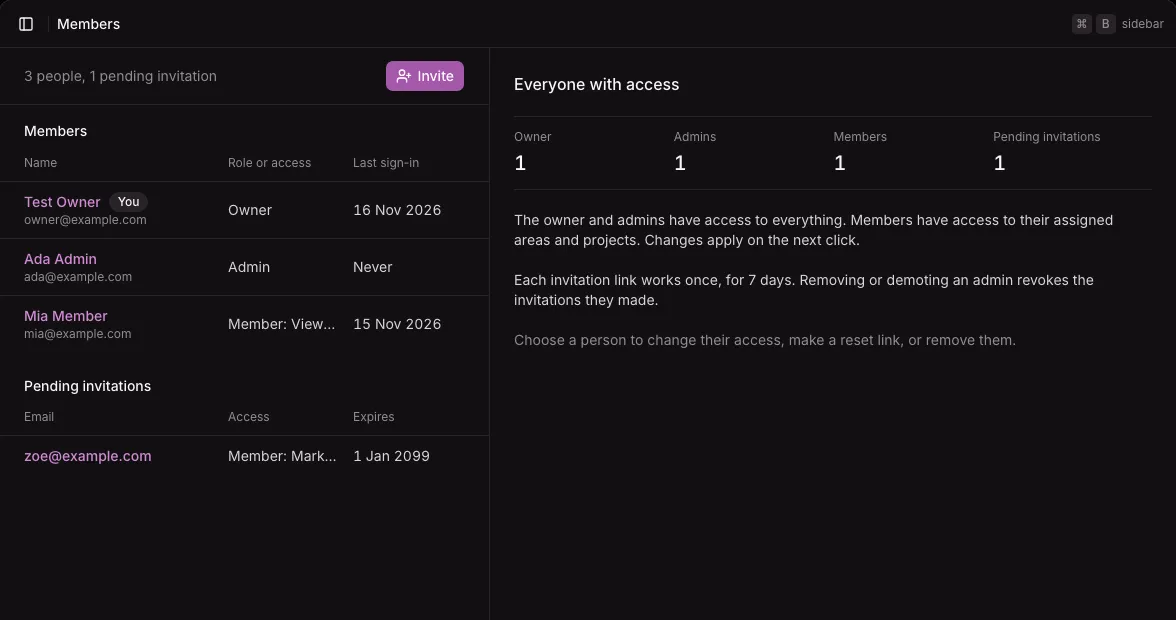
Choose a person to open their page in the right pane. The choice is in the address (?member=… or ?invitation=…), so a reload or the Back button keeps it.
A member’s page
Section titled “A member’s page”A member’s page shows their name and email address, their role or access, their last sign-in, and when they joined. Then it has these sections, each when the role rules allow it:
| Section | What it does |
|---|---|
| Access | The person’s role, preset, areas, and projects, as a form. Save access saves it. |
| Password | Reset link makes a one-time link that sets a new password. See Password reset links. |
| Ownership | Make owner hands the instance to this person. Only the owner sees it. See Hand over ownership. |
| Remove | Remove deletes the person’s account. |
Where the role rules allow nothing, the page says why. For example, an admin who chooses another admin reads that only the owner changes an admin’s access, makes their reset link, or removes them.
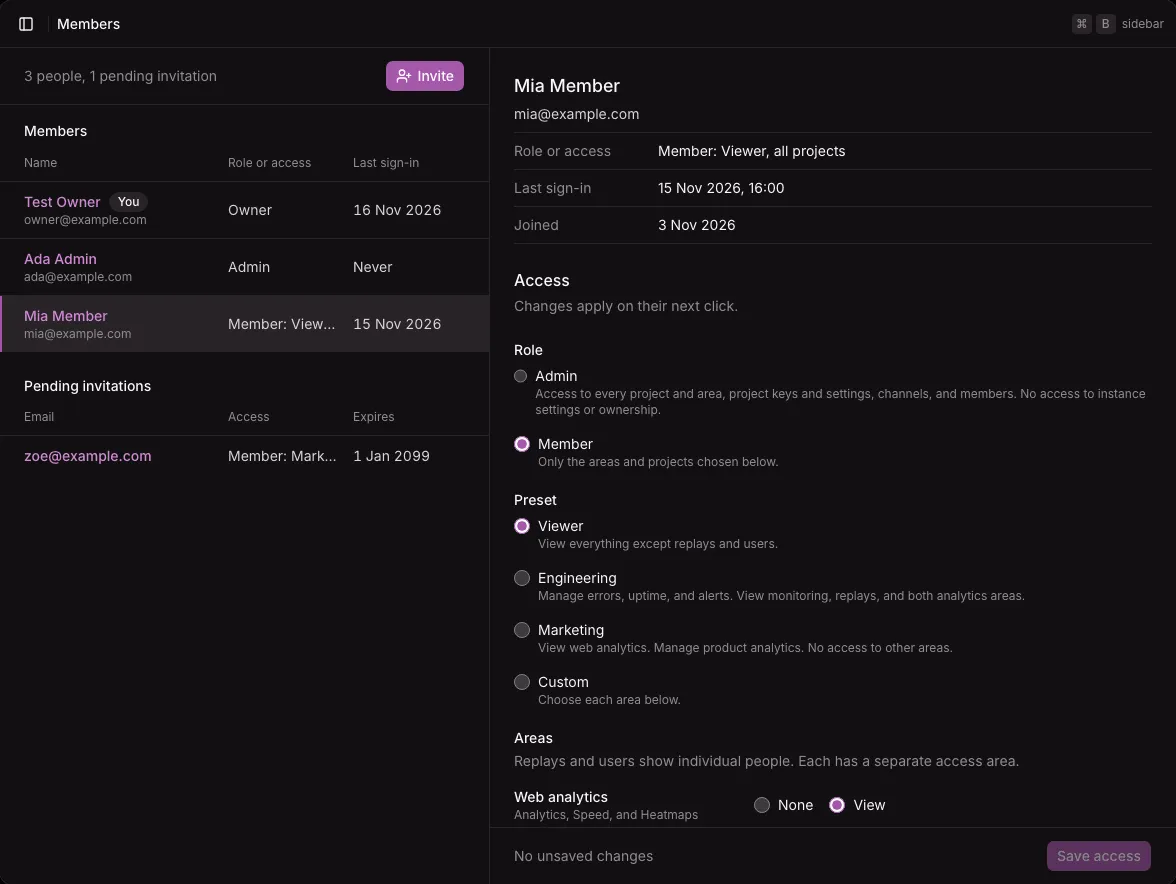
Change a member’s access
Section titled “Change a member’s access”- Choose the person in the list.
- Under Access, choose the role: Admin or Member. Only the owner can choose Admin.
- For a member, choose a preset, then change the areas if you need to. See Areas and levels.
- Under Projects, choose All projects, including new ones, or Chosen projects and tick each project. A member needs at least one project.
- Select Save access.
The form follows the dashboard’s save rule: Save access stays disabled until you change something, and Discard undoes your changes. If you choose another person or leave the page with unsaved changes, the dashboard asks first. See The save rule.
The change applies on the person’s next click. Their old access does not come back later: the instance stores exactly the areas and projects of the last save. A change of role or access also cancels the person’s pending reset link.
When you make an admin a member, the invitations and reset links that the admin made stop working.
Remove a member
Section titled “Remove a member”- Choose the person in the list.
- Under Remove, select Remove, then confirm.
Removing deletes the person’s account and signs them out at once, on every device. Their pending invitations and the reset links they made stop working. What they did stays: an error that they resolved stays resolved. To let them back in, invite them again.
The owner cannot be removed. To leave the instance, the owner first hands over ownership, and the new owner can then remove them.
On a phone
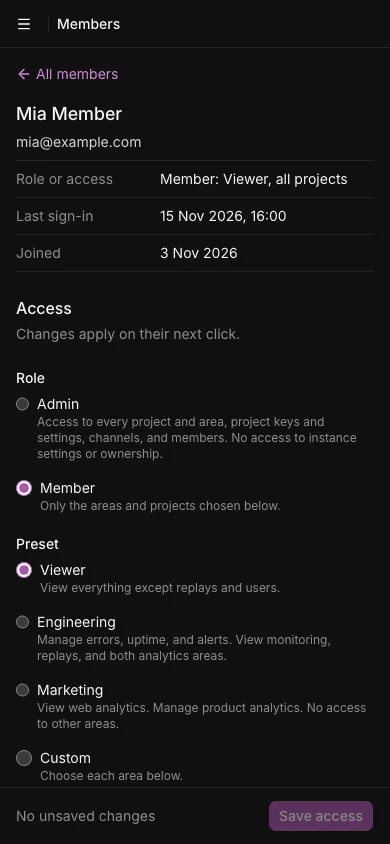
Section titled “On a phone”Under 64rem wide, the list fills the screen. Choosing a person opens their page, with All members at the top to go back. An unsaved change, an open dialog, and a link that you made stay when you turn a tablet between the two layouts.
Areas and levels
Section titled “Areas and levels”A member’s access has two parts:
- Projects: all projects, including projects created later, or a chosen list. When a project is deleted, it leaves the list.
- Areas: each area at a level, None, View, or Manage. Areas with nothing to change have only None and View.
| Area | Pages | View | Manage |
|---|---|---|---|
| Web analytics | Analytics, Speed, and Heatmaps | Every page, and opening a heatmap on the project’s site | (no Manage level) |
| Product analytics | Events, funnels, retention, and the goals on the Analytics page | Every report and saved funnel | Saving, renaming, and deleting funnels. Adding and deleting goals. |
| Errors | Errors, an error’s page | Error groups, occurrences, and stack traces | Resolving and reopening errors |
| Replays | Replays, a replay’s page, and the replay of an error | Every replay | (no Manage level) |
| Users | Users, a user’s page | Identified users and their activity | (no Manage level) |
| Monitoring | Traces, Logs, Metrics, Services, Databases, Hosts | Every page | (no Manage level) |
| Uptime and alerts | Uptime, Alerts | Checks, alert rules, and alerts | Adding, changing, pausing, and deleting checks and alert rules, and choosing their channels |
Replays and users are separate areas because they show individual people.
The sidebar of a member lists only the areas they have. The project’s overview shows only the widgets of their areas. A page they cannot open says “You don’t have access”. A project they were not given looks as if it did not exist.
Alert rules and the areas they watch
Section titled “Alert rules and the areas they watch”An alert rule shows what it watches, so a rule also needs the area it watches, at View:
| Rule kinds | Also needs |
|---|---|
| A check is down, a certificate expires soon | Nothing more |
| New, regressed, and spiking errors | Errors |
| Route latency, route failures, metric thresholds | Monitoring |
A member sees only the rules and alerts of the kinds they may see, and can add only those kinds. A member who manages alerts without the monitoring area gets no suggestions for services, routes, and metrics in the rule form, and types the names.
What members never see
Section titled “What members never see”- Project keys and project settings, including source maps and the replay settings.
- The notification channels, except their names when they choose a rule’s channels.
- The Members page and the instance settings.
A member sees the name of every project that they were given, whatever their areas.
A member with the web analytics area sees the project’s allowed hostnames on the Heatmaps report, where Open on your site names the site to open. They are the addresses of your own sites, not keys or other settings. See Heatmaps.
Presets
Section titled “Presets”A preset fills in the areas. You can then change any area, and the preset becomes Custom.
| Preset | Areas |
|---|---|
| Viewer | View on everything except replays and users |
| Engineering | Manage errors, and uptime and alerts. View monitoring, replays, web analytics, and product analytics. |
| Marketing | View web analytics. Manage product analytics. Nothing else. |
| Custom | Any other mix |
Known limits
Section titled “Known limits”- An error’s occurrences and a replay show the ID of the user they happened to, as text, to members without the users area. The links to the user’s page are hidden, and the page itself is refused.
- A user’s page lists the user’s errors as text to members without the errors area.
- Traces, logs, and server errors can carry a user’s ID, when your app’s OpenTelemetry attributes hold one. Members with monitoring or errors see those IDs without the users area.
- Deleting source maps needs the errors area at Manage, but source maps are on the project’s settings, which members do not see. Only the owner and admins delete them in the dashboard.